Bring your health information to an AI assistant
Use a Markdown export on Free or Plus, or connect a compatible assistant through Lifexam's MCP server with Plus.
By Lifexam Editorial
AvailabilityFree and PlusDescribes features on both the Free plan and Plus. All resources are free to read.
On this page
If you use an AI assistant to organize information or prepare questions, you may want to give it the results you're looking at. Lifexam supports a manual marker export and, with Plus, a connection through its MCP server.
The choice affects what you send and how the assistant receives it. A downloaded file is a snapshot. A connection allows a compatible assistant to request information while access is authorized.
Free and Plus: export your markers as Markdown Free
Markdown is a text format with headings and simple formatting. You don't need to learn its syntax to read an export. Open the file in a text editor, or attach it to an assistant that accepts that kind of file.
The export follows the marker selection you made, including applicable period, search and body-system filters. It can include recorded values, units, reference ranges, trend measurements and annotations. Check the stated scope and the contents before sharing it. It also includes the Profile’s sex and, when known, age.
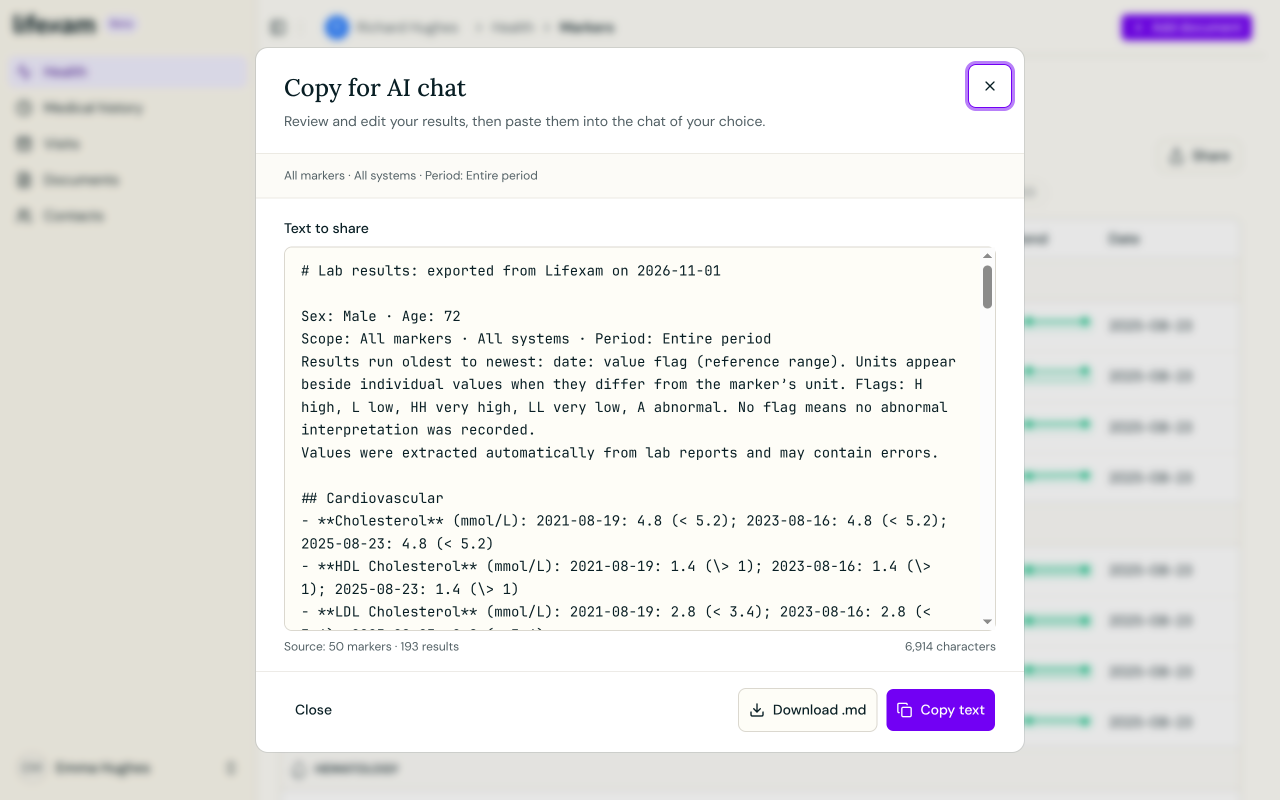
This is a marker export. It doesn't contain every original PDF or all the information in your vault.
Once exported, the file stays as it was. If you add a report or correct a result, export again when you want the assistant to work from the updated information. Closing Lifexam doesn't remove a file you have already attached elsewhere.
Plus: connect through the MCP server Plus
MCP is a way for compatible assistants to request information from another service. Lifexam's MCP server provides that connection for eligible health records. MCP access requires active Plus; you can still review and revoke connections on Free.
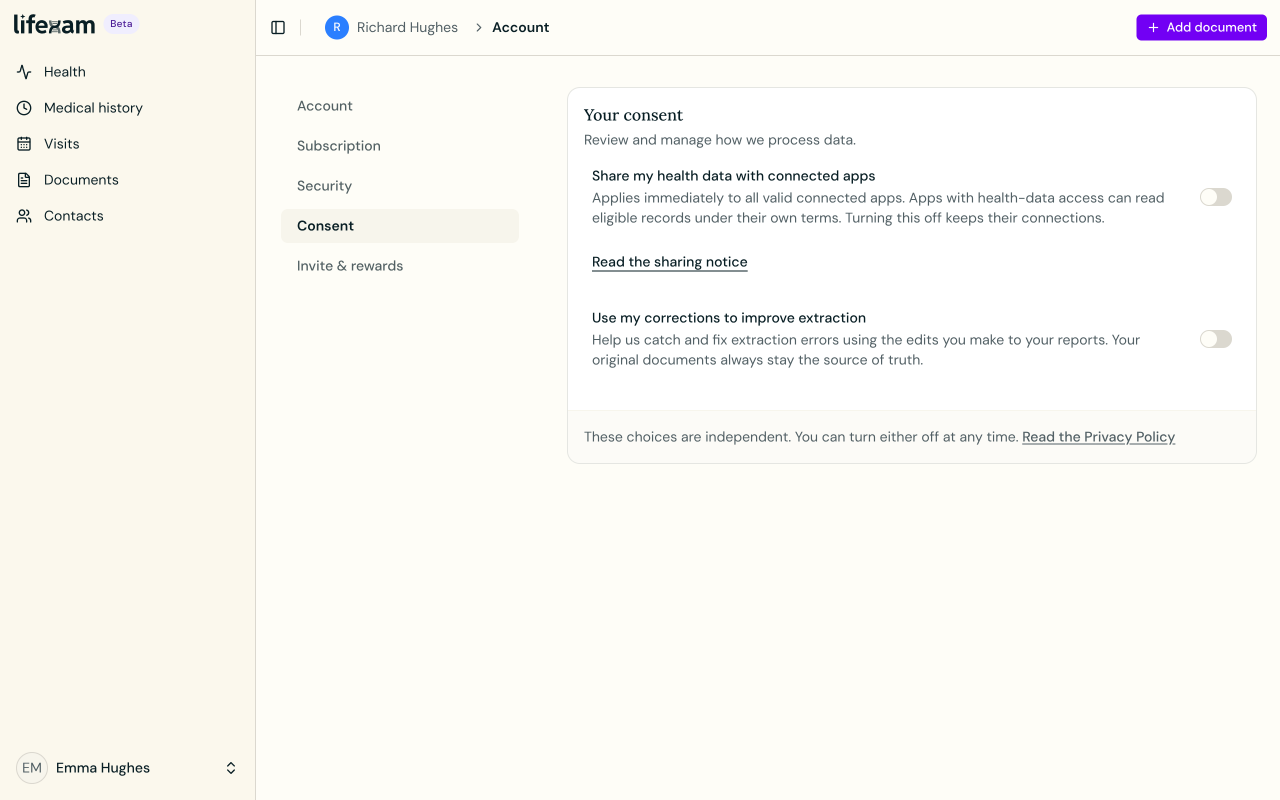
Connecting an app and allowing it to read health records are separate decisions. Lifexam requires authorization for the connection and separate app-sharing consent. Withdrawing app-sharing consent stops external record sharing for all connected apps without removing those connections.
An assistant's own connector support, access rules and charges still apply. Lifexam Plus doesn't include a subscription to an assistant provider. Check compatibility before choosing a provider for this purpose.
Before connecting, set a nickname in Manage Profiles if you want a recognizable label for the assistant. MCP sends that nickname instead of the Profile name, or “Profile” if no nickname is set. This only hides the Profile name: date of birth, report text and filenames may still identify the person.
Use the Lifexam MCP server URL
For an account on eu.lifexam.com, copy https://eu.lifexam.com/api/mcp into your assistant’s server URL field. If you use another Lifexam domain, use that domain followed by /api/mcp, without a language prefix such as /en. Choose Streamable HTTP (or HTTP) and OAuth when asked. This is a server address to enter in settings, not a page to open or a link to paste into a chat.
ChatGPT (OpenAI)
- On ChatGPT’s website, open Plugins, select the plus button, then Add custom MCP server.
- Name it Lifexam, enter the server URL above, and choose OAuth authentication. Review the warning, then select Create as a plugin.
- Install the resulting plugin and select it with @ in a conversation. Complete the Lifexam sign-in and authorization described below.
OpenAI’s current ChatGPT MCP setup instructions (opens in a new tab)
Claude (Anthropic)
- In Claude on the web or desktop, open Customize → Connectors, then + Add → Add custom connector.
- Name it Lifexam and enter the same server URL. Continue with OAuth sign-in; if offered an OAuth client choice, use Claude’s published identity or automatic registration.
- Finish adding the connector and enable Lifexam from the conversation’s + → Connectors menu. Complete the Lifexam authorization described below.
Claude’s current custom connector setup instructions (opens in a new tab)
Other compatible assistants
- Check that the assistant supports remote MCP servers over Streamable HTTP and OAuth sign-in.
- Add a remote server named Lifexam with the same URL and follow its sign-in flow. Configuration file formats differ between assistants; use your provider’s instructions for the URL and OAuth settings.
- If remote MCP or OAuth is unavailable, use the Markdown export described above.
General guide to connecting remote MCP servers (opens in a new tab)
Finish authorization and check the connection
When redirected to Lifexam, sign in to the account with active Plus, review the requested access, and enable app-sharing consent if you want to share eligible records. Then choose Connect app and return to the assistant. Ask: “Use Lifexam to list my eligible Profiles.” Choose the intended Profile before asking about its results.
If setup is missing, check the provider’s current instructions and your workspace permissions; an administrator may need to allow custom connections. If no Profiles appear, check Plus access, sharing consent and the eligibility rules below. Review or revoke individual connections in Account → Security → Connected apps; manage sharing for all apps in Account → Consent.
Check which Profiles are eligible
For a human Profile, MCP access requires a known, valid birth date showing that the person is at least 16. Recognized animal Profiles are exempt from that human age requirement. An unknown human age does not qualify.
Being able to manage a Profile in Lifexam doesn't by itself make the record eligible for MCP. It also doesn't establish that you have authority to share everyone else's information that may appear in its documents.
Decide what you want the assistant to do
A request such as “List the dates of these tests” or “Help me write questions for my next appointment” gives you something you can check against your record. Review the response before copying it into notes or taking it to an appointment.
An assistant can misread information or produce an incorrect answer. It doesn't diagnose or replace your clinician. Received information is handled under the assistant provider's terms, whether you supplied a file or authorized a connection.
Stopping a connection or withdrawing consent prevents future access through that route. It doesn't retrieve information already received by the provider. Review the provider's controls separately if you want to delete a conversation or uploaded file.