Keep separate health records for the people you care for
Use Profiles to keep each person's reports distinct while managing them from your account, and understand the shared limits.
By Lifexam Editorial
AvailabilityPlusDescribes a Plus feature. All resources are free to read.
On this page
If you help a parent with appointments or keep track of a child's reports, their paperwork can end up beside your own. That is manageable until you need to find a result and aren't sure whose folder it is in.
Profiles let you keep separate health records within your Lifexam account. You select the person you're helping, then work with that person's reports, history and Visits.
Multiple Profiles are included with Plus under the ordinary plans. Free includes one Profile. Every article in Learn is free to read, including this one.
One account, separate records
Your account is what you sign in to. A Profile identifies whose health record you're viewing.
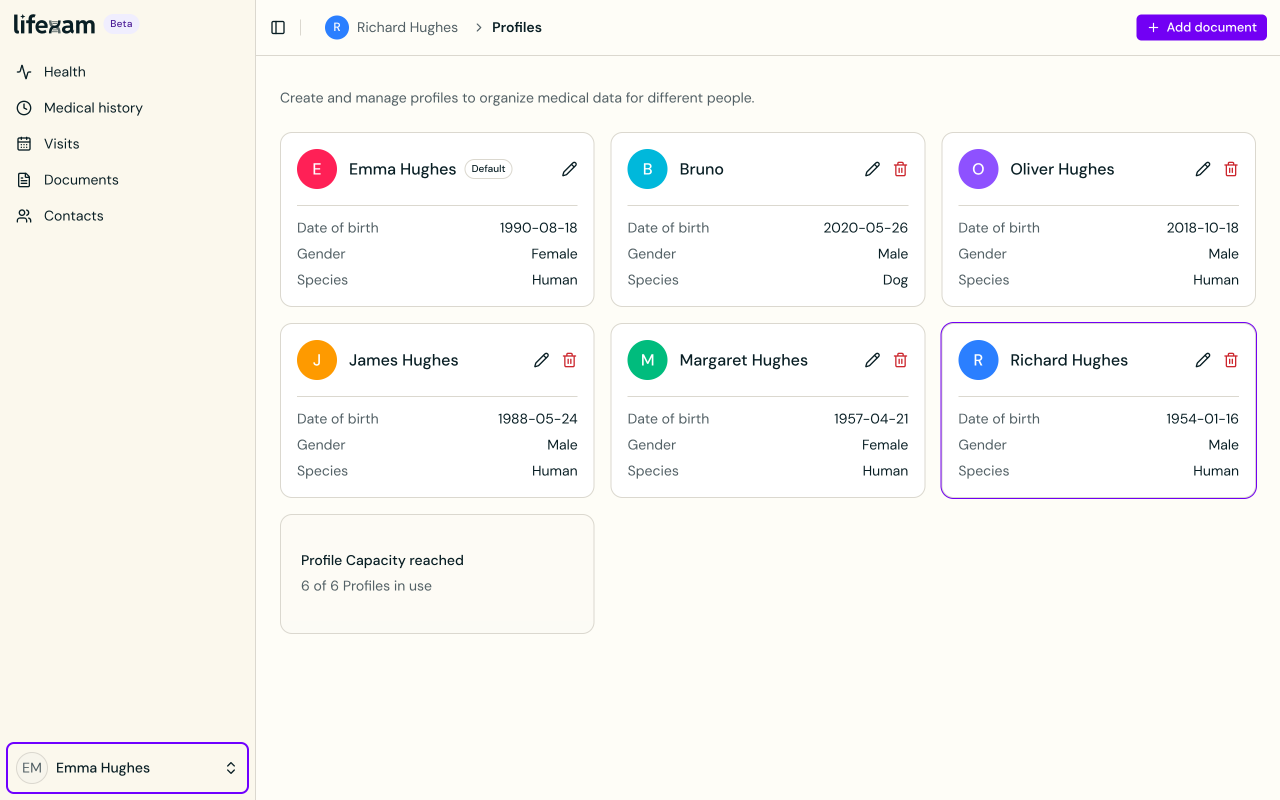
Creating a Profile for someone doesn't create a login for them or invite them to work in your account. It also doesn't establish your authority to manage their information. Make sure you have the permission or responsibility needed for the person you're helping.
The separation is useful when reports arrive at different times. You can keep each person's documents in the intended record instead of mixing a parent's history with your own results.
Select the person before adding a report
Create the Profile through the app's Profile controls, then select it before choosing a document to upload. Check the destination again in the upload dialog when the selector is shown.
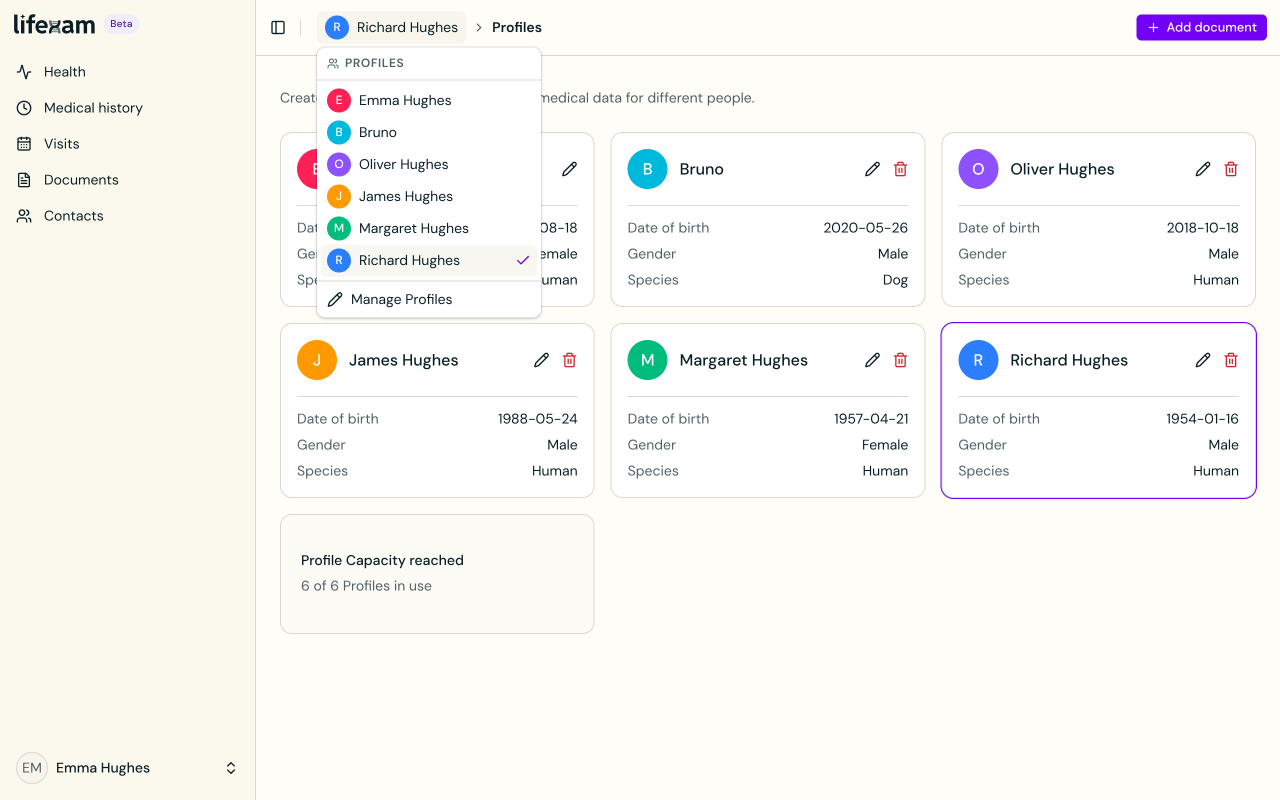
After processing, check that the report appears in the intended person's record. When switching Profiles, look at the selected name before preparing a Visit or sharing information with a doctor.
This matters even when the report itself contains the right patient's name. Your selected destination determines which Profile receives the upload; don't rely on the printed name to make that choice for you.
Understand what the limits count
Plus includes ten Profiles and 100 Document slots across the account. The slots are shared: creating another Profile doesn't add another 100 slots.
Free includes five Document slots and one Profile. Eligible referrals can temporarily increase Free Document capacity under the referral rules, but they do not unlock multiple Profiles. Administrative capacity settings can also change an account's limits, so a demo account may show a different number from the ordinary plans.
You can review the ordinary allowances on the plans page. Check your own account for the capacity currently available to you.
Know what happens if Profiles access ends
Losing access to multiple Profiles can lead to consolidation after the announced delay and a delivered warning. Documents and linked medical records from extra Profiles are moved into the default Profile. The source Profiles' Concerns and their notes, and their Visits and associated preparation, are deleted.
That can mix different people's histories in the default record. Completed consolidation cannot be undone, and renewing access afterward doesn't restore the deleted Profiles or their preparation.
If you receive a warning, read it before the deadline and review the records you manage.