Share your health record with a doctor
Choose between a temporary read-only link and an exported file, and check what you're sharing before you send it.
By Lifexam Editorial
AvailabilityFree and PlusDescribes features on both the Free plan and Plus. All resources are free to read.
On this page
When a doctor asks for your results, you can share a read-only view through Lifexam or give them an exported file. The link lets them open your health status without creating a Lifexam account. A file gives them a copy to keep.
Standard sharing and your own PDF and Markdown exports are available on Free and Plus. Sharing in another language is a Plus feature. Your doctor doesn't need a paid account to read a shared view.
Check whose record you're sharing
Open the intended Profile and review the information before opening Share. If you manage someone else's reports, make sure you have authority to share that person's information.
The sharing notice says that anyone with the link can view and export your full health status. Filtering the marker list isn't a way to limit a sharing link to those visible rows. Check the scope before generating one.
Choose how long the link should work
The standard link options are one hour, one day and one week. Choose the shortest duration that gives the doctor enough time to use it.
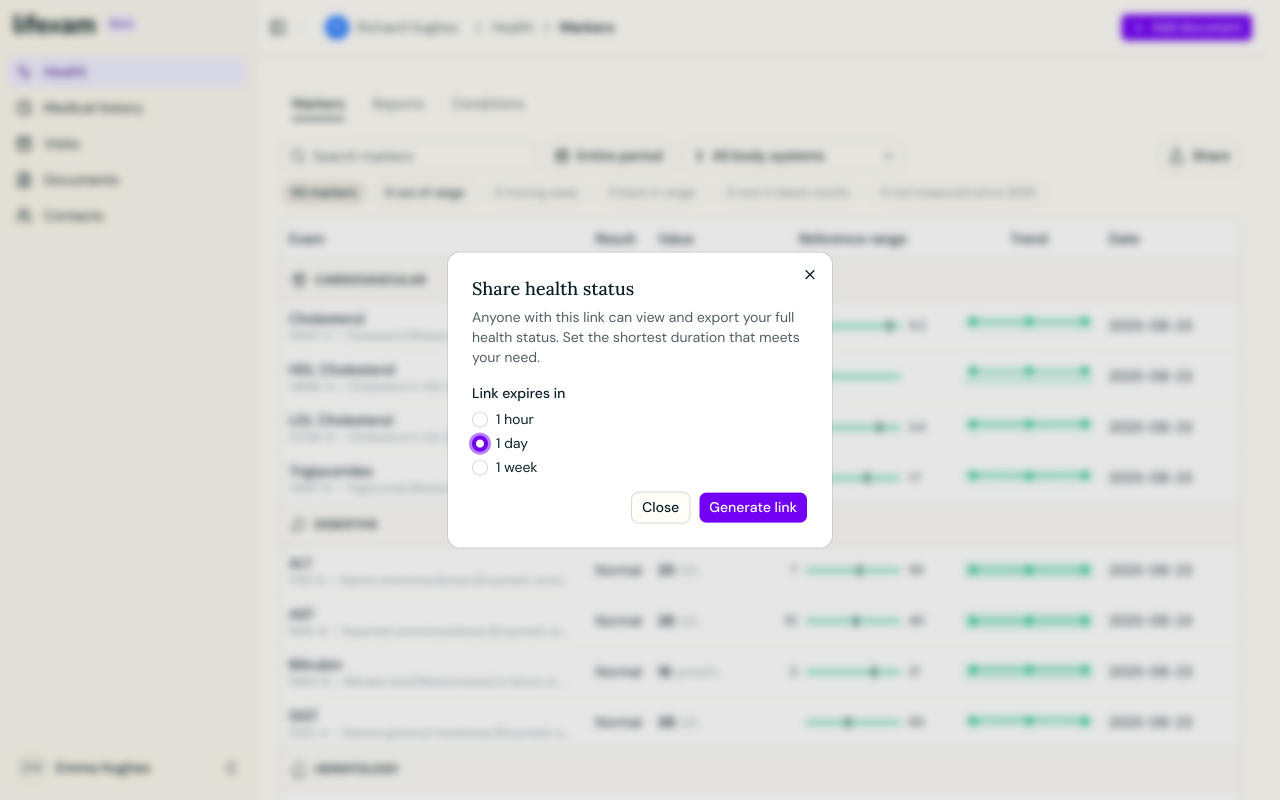
After generating the link, copy it and send it through the channel you and the doctor normally use for this information. Treat it as private: access comes from possessing the link, rather than proving that the recipient is your doctor.
An unexpired link shows the latest available values. It isn't a frozen copy of the screen you saw when you created it.
Understand what expiry does
Expiry limits access through that link. It doesn't retrieve files the recipient has already exported or copies they have made.
Once you create a sharing link, you cannot revoke it yourself before it expires. Deleting a message containing the link does not end access through it.
Use a file when the clinic needs one
A PDF can be useful when a clinic asks for a document or needs something to print. Markdown exports recorded markers as readable text that can be opened in a text editor or used in another compatible tool.
Review the export's scope and contents before sending it. A marker export isn't a bundle of every original document in your vault. The file also won't update when you add another report; export a new copy if the recipient needs the newer information.
Before sending a link or file, check the person, the scope and the expiry where applicable. If the clinic needs a particular report as well as the health-status view, include that original through the method the clinic accepts.
Plus: share in another language Plus
With Plus, you can request a translated health PDF, delivered to your account email. Choose the target language before generating it. This can help when you are seeing a doctor who reads a different language from the one you usually use in Lifexam.
Review the translated PDF before forwarding it. Keep the original reports available for checking names, values, units and any text whose meaning needs clarification. Sharing translated health information does not turn the original uploaded PDF into a newly translated source document.